
Draw a route on a map, get a GPX
Sometimes you just want to plan your own loop. Not a shape, not a challenge, just "start here, go round the park, come back", and have it on your watch. RouteSketcher is built for GPS art, but the same tools draw a plain route in about a minute: you sketch the line, it snaps to real streets and paths, and you download a GPX.
Short version: open the editor, pick Freehand Snapping, draw your route, check the snapped distance, save, then Download → Download Snapped GPX.
1. Open the editor and find your area
Sign up for free (no credit card) and open the editor. Use the search icon on the right of the map to jump to your city, then zoom in until you can see the streets you want to use.
2. Pick a draw mode
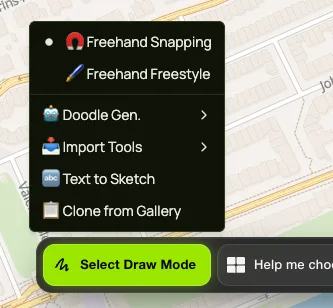
Open Select Draw Mode at the bottom of the screen:
- Freehand Snapping sticks your line to streets, footpaths and cycle paths as you draw. This is the one for almost every route.
- Freehand Freestyle keeps exactly the line you draw, without snapping. Use it for beaches, fields or a running track, where you can go anywhere.
3. Draw the route
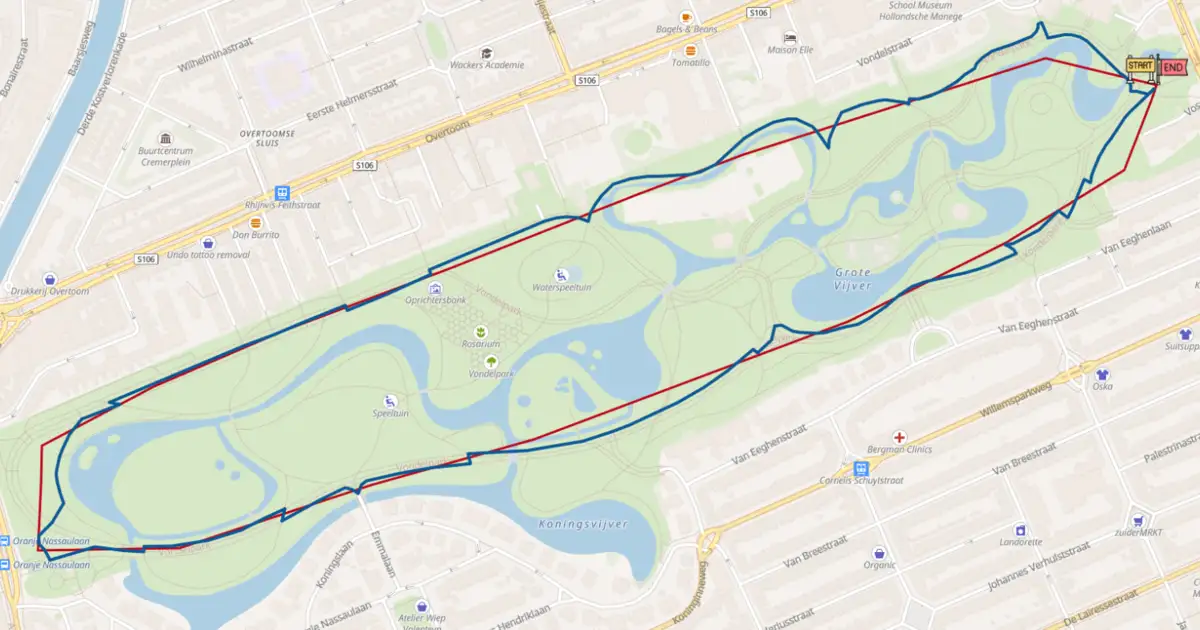
Click and drag along the streets you want to take. You don't need to be precise: draw roughly along them and RouteSketcher finds the real path. The loop in the picture above is a rough outline around Vondelpark (red), and the snapped line (blue) follows the park paths.
- A loop: finish where you started.
- From A to B: just stop drawing where you want to end. The route doesn't have to close.
- Long straight drags: across a street grid, one long diagonal drag turns into a zigzag. Draw along the streets instead, or in shorter strokes.
Made a mistake? The undo button next to Pause takes back the last stroke.
4. Check the distance
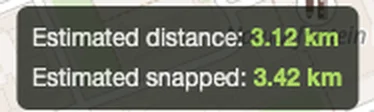
The distance shows at the top of the map while you draw. Estimated distance is the line you drew, Estimated snapped is the real route along the streets, so that's the one to go by. Our park loop came out at 3.42 km.
Prefer miles? Open Settings and tick Use imperial units (mi).
5. Save and download the GPX
Hit Pause, then Save and give your route a name. The free account keeps 2 saved sketches.

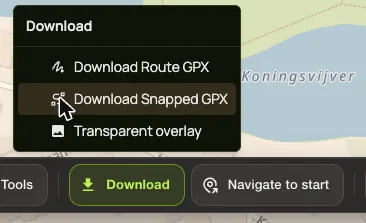
Once it's saved, open Download and pick Download Snapped GPX: that's the route along the streets. Download Route GPX gives you your drawn line exactly as you drew it.
6. Put it on your watch or app
A GPX file works almost everywhere:
- Garmin: import it in Garmin Connect as a course and send it to your watch or bike computer. Step by step: export a sketch to Garmin.
- Komoot: import the GPX on the Komoot website and it shows up in your planned routes.
- Strava: importing a GPX as a Strava route needs a Strava subscription.
- Google Maps: handy if you just want to follow it on your phone. Here's how to open a sketch in Google Maps.
When another tool fits better
RouteSketcher draws the line and gives you the file. It doesn't do turn-by-turn directions, elevation profiles or a separate bike or foot routing profile. If you need those, a dedicated planner like Komoot, Strava's route builder or RouteDoodle is the better pick, and you can still import the GPX you made here.
Now draw something fun
Once you can draw a route, you can draw anything. Swap the loop for a heart, a dinosaur or your name, and your run shows up on Strava as a drawing. Start with the Strava art guide or our first sketch tutorial. Riding? Here's GPS art by bike.
Frequently Asked Questions
Is it free?
Yes. The free account saves 2 sketches, and you can download the GPX of each. If you want more, GPS Artist is a one-time $19.99 for unlimited sketches, no subscription.
Does it work on my phone?
Yes. RouteSketcher runs in the browser, so it works on a phone, tablet or laptop with nothing to install. Drawing is easier on a bigger screen.
How long can a route be?
From 500 m up to 600 km, plenty for a long ride.
Can I draw a route without it snapping to roads?
Yes, pick Freehand Freestyle. Your line stays exactly as you draw it, which is what you want on a beach or in a field.