
How to export your sketch to Garmin Connect and watch (iOS)
Learn how to export your RouteSketcher route to Garmin Connect and then load it on your Garmin watch. This guide assumes you've already created and saved a sketch in RouteSketcher. If you haven't created one yet, check out the tutorial on creating your first sketch.
Prerequisites
Before you begin, make sure you have:
- Created and saved a sketch in RouteSketcher
- A Garmin watch and the Garmin Connect app installed on your phone
- The watch must be synchronized and Bluetooth synced with your phone
Step 1: Download the Snapped Route
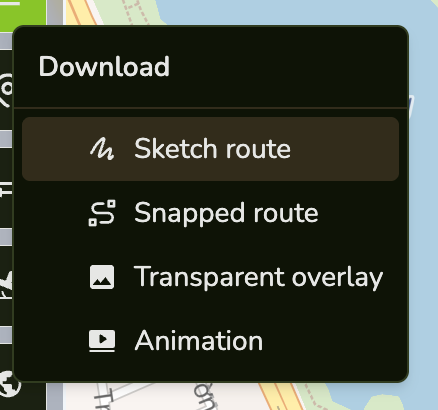
From your phone, locate your saved sketch in RouteSketcher, then tap on the Download button at the top left of the screen. Select Snapped Route (snapped to roads) or Raw Route (freestyle sketch, not snapped to roads) to download your route as a GPX file on your phone.
Tip: We always recommend downloading the Snapped Route rather than the Raw Route, unless you're creating a route in a park or rural area where road snapping isn't needed.
The GPX file will be saved to your phone. You'll see a confirmation message at the bottom of the screen indicating that the sketch has been saved.
Step 2: Import the route file in Garmin Connect
- Locate the file you just downloaded on your phone
- Open it and then use the "Share" action to share it to Garmin Connect
- In Garmin Connect, select the type of activity (running, cycling, etc.)
- Tap "Save" then "Save" again
- Tap the watch icon at the bottom right of the screen. The route will be synchronized to your watch
Step 3: Ready, Set, Go!
Once the route is on your watch, start a run or cycling activity and locate your route under "Navigation", then hit "Do Course". You're all set! You can use RouteSketcher to get a Google Maps link to the exact start coordinates. Good luck with your activity! Don't forget to activate Strava activity recording 😉
Tips for Best Results
- Download Snapped Route: Always use the Snapped Route for city routes to ensure it follows actual roads
- Use Raw Route for Parks: If you're creating a route in a park or rural area without roads, use the Raw Route instead
- Test Your Route: Before a big event, test the route on your Garmin device to ensure it works correctly
- Verify File Format: Make sure you downloaded the GPX file
Troubleshooting
Route not appearing on Garmin?
- Make sure you imported the GPX file through the Garmin Connect app
- Verify your Garmin device supports GPX course files
- Ensure the file has a
.gpxextension - Try syncing your watch with Garmin Connect again
Route doesn't follow roads correctly?
- Go back to RouteSketcher and use Edit Points mode to manually adjust problematic sections
- Make sure you downloaded the Snapped Route in cities, not the Raw Route
Need help creating your first sketch? Check out our guide on creating your first sketch.