
How to Transform a Hand-Drawn Sketch with AI
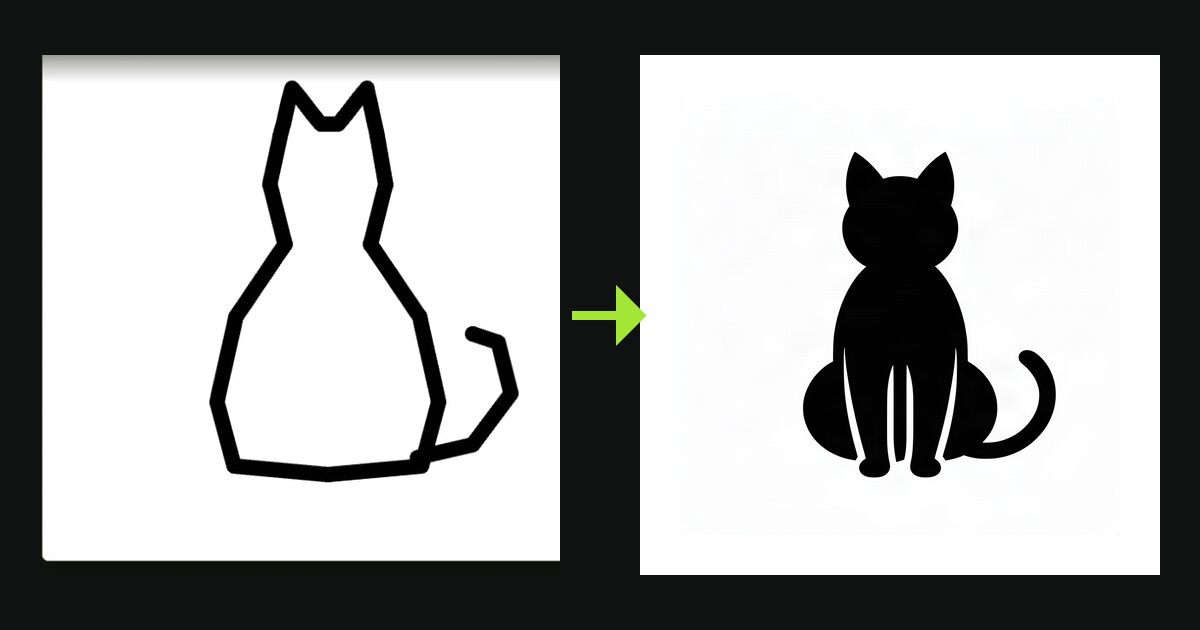
Have a specific shape in mind but your drawing skills aren't quite there? RouteSketcher's AI Sketch Transform lets you draw a rough doodle and have AI polish it into a clean, usable shape for GPS art. Draw your idea, add an optional description, and let AI do the heavy lifting!
🎥 Video Version:
Watch this guide on Instagram
Step 1: Access the Sketch Canvas
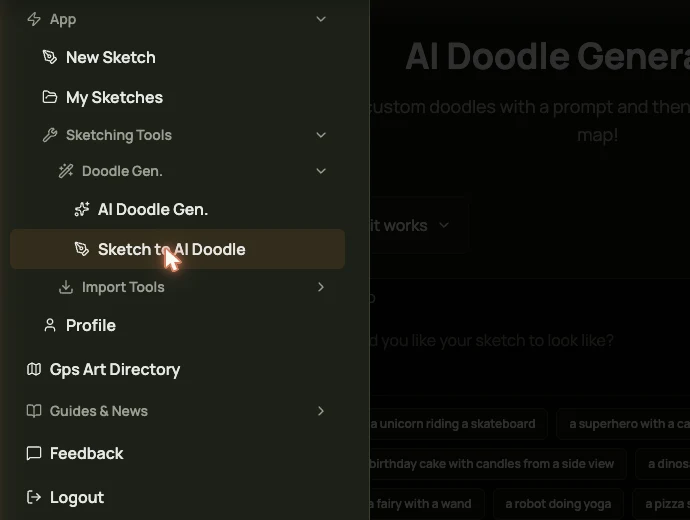
After logging in, navigate to App -> AI Doodle -> Sketch Your Doodle from the main menu, or go directly to routesketcher.com/imagine/sketch.
Step 2: Add a Description (Optional but Recommended)
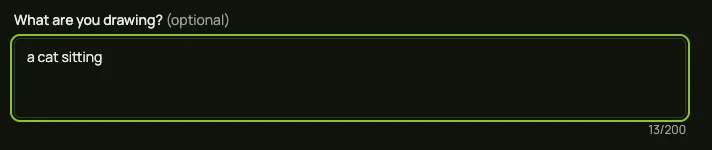
Before drawing, you can add a description to help the AI understand what you're creating. This significantly improves results, especially for ambiguous shapes.
Example descriptions:
- "a person dancing"
- "a Christmas tree"
- "a running shoe"
- "a cat sitting"
Step 3: Draw Your Doodle
Use the canvas to draw your rough sketch. Don't worry about perfection – the AI will refine it!
Drawing tools:
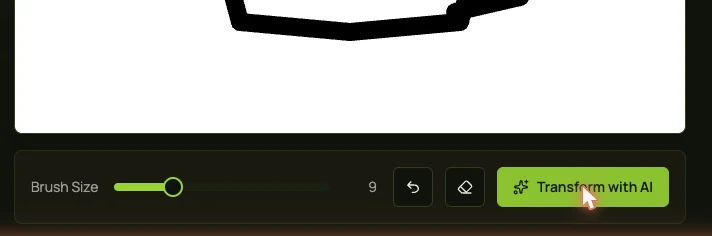
- Brush Size Slider: Adjust stroke thickness (2-30px)
- Undo Button: Remove the last stroke
- Clear Button: Erase everything and start over
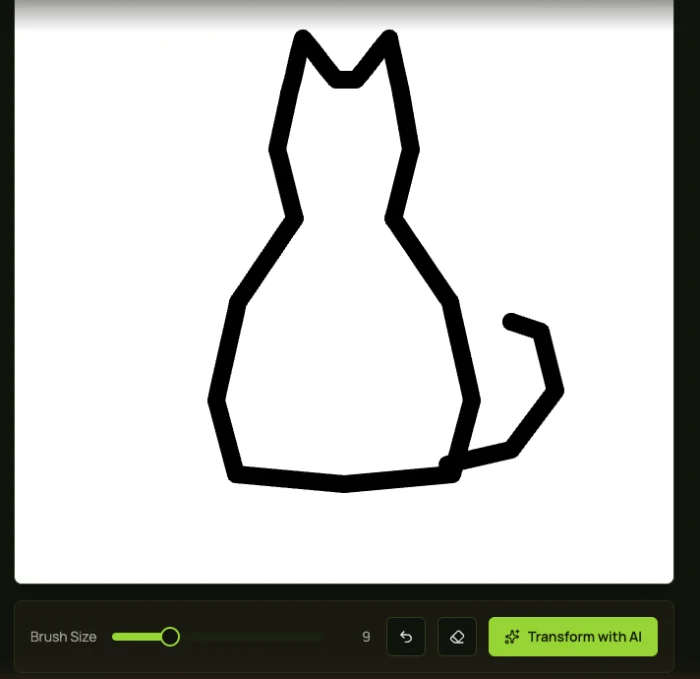
Pro Tip: Draw with bold, clear strokes. Thin or faint lines may not be detected by the AI.
Step 4: Transform with AI
Click the Transform with AI button to submit your sketch. The AI will analyze your drawing and create a polished version.
Step 5: Wait for Processing
The transformation takes a few seconds. A status message will show the progress. Don't close the page while processing!
Step 6: View Your Transformed Doodle
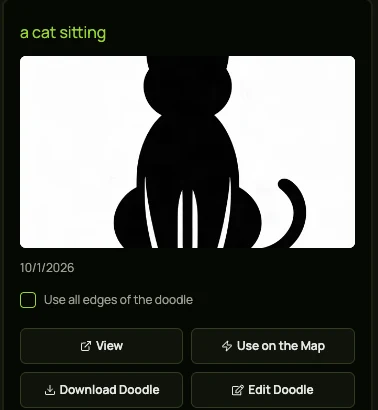
Once complete, you'll be automatically redirected to the AI Doodle page where your transformed sketch appears. The AI has cleaned up your rough drawing into a polished shape.
Step 7: Choose Edge Options
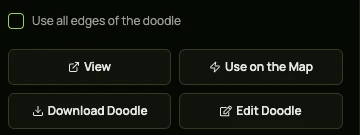
Before using the doodle on the map, choose how to trace it:
- Unchecked (default): Use only the external border – creates a single continuous outline
- Checked "Use all edges": Trace all edges including internal details
Step 8: Add to Map
Click Use on the Map to convert your transformed doodle into an editable sketch on the map.
Working with Your Transformed Sketch on the Map
Position and Scale
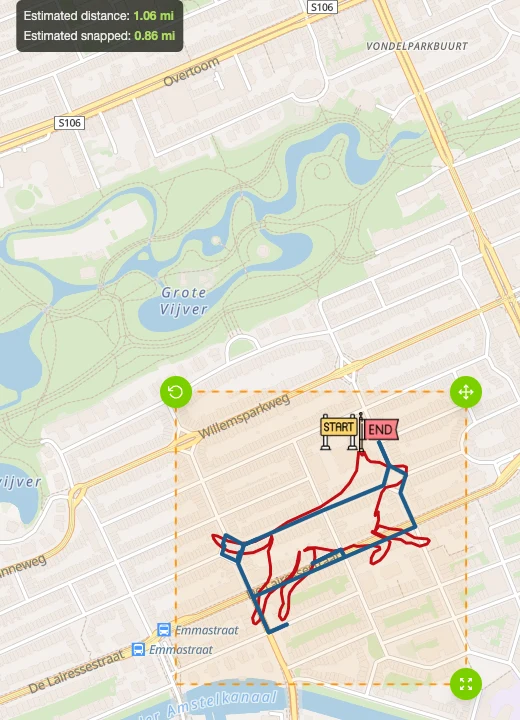
Use the transform handles to:
- Move the sketch to your desired location
- Scale it to fit your target distance
- Rotate it to align with local roads
Apply Road Snapping
Enable road snapping to align your shape to actual roads and paths, transforming it into a real runnable route.
Tips for Best Results
Drawing Tips
- Draw bold, clear lines – thin or faint strokes may not be detected
- Keep shapes simple – complex details may be lost in transformation
- Use the full canvas – small drawings in the corner may lose detail
- One continuous shape works best – avoid multiple disconnected elements
Description Tips
- Be specific – "a dog running to the left" works better than just "dog"
- Describe the pose or action – helps AI understand your intent
- Keep it short – one sentence is usually enough
Usage Limits
The AI Sketch Transform shares limits with the AI Prompt Generator:
- Free accounts: 2 AI sketch transformations
- Lifetime license: 10 AI sketch transformations
💡 Coming Soon: A token-based system will allow you to purchase additional AI transformations, so you can create as many sketches as you want!
Troubleshooting
Transformation failed?
- Ensure your sketch has clear, visible strokes
- Try drawing with a larger brush size (15-20px)
- Make sure your drawing fills most of the canvas
Result doesn't match your drawing?
- Add a description to clarify what you drew
- Try simplifying your sketch – less detail often works better
- Redraw with bolder, more defined strokes
AI created something completely different?
- Your drawing may be too abstract – try a clearer representation
- Add a description to guide the AI
- Some shapes are easier for AI to recognize than others
What's Next?
Now that you've transformed your sketch, you can:
- Save your route to access it anytime
- Export to GPX for your GPS watch or fitness app
- Make it public to share with the community
- Try the text prompt method for even faster generation
Check out our other tutorials:
- How to Generate Shapes with AI Prompts
- How to Create Your First Sketch
- How to Export to Garmin Watch
- How to Import from GPX
Ready to transform your sketches? Try the AI Sketch Transform now!