
How to Generate GPS Art Shapes with AI Prompts
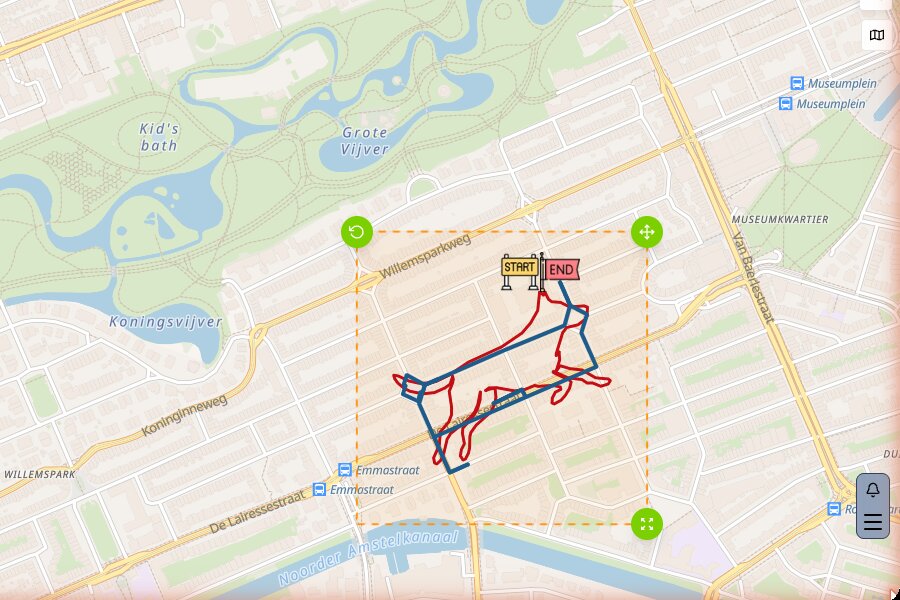
Can't draw? No problem! RouteSketcher's AI Doodle Generator lets you create stunning GPS art shapes just by describing what you want. Type a simple prompt like "a running dog" or "a bicycle", and AI will generate a polished doodle that you can turn into a runnable route.
Step 1: Access the AI Doodle Generator
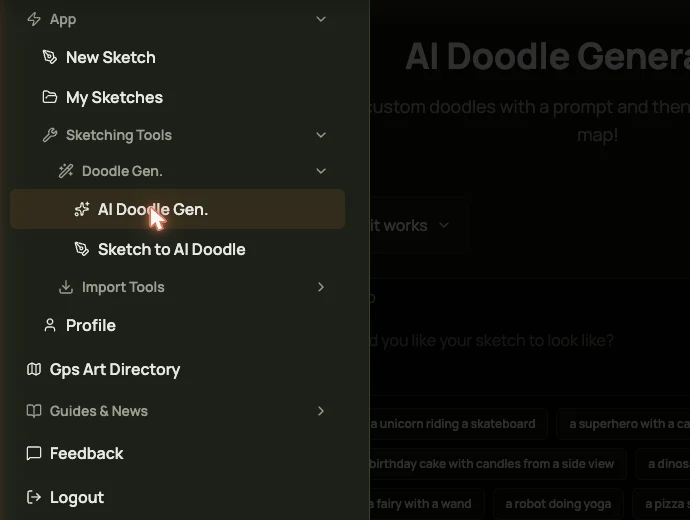
After logging in, navigate to App -> AI Doodle from the main menu, or go directly to routesketcher.com/imagine.
Step 2: Enter Your Prompt
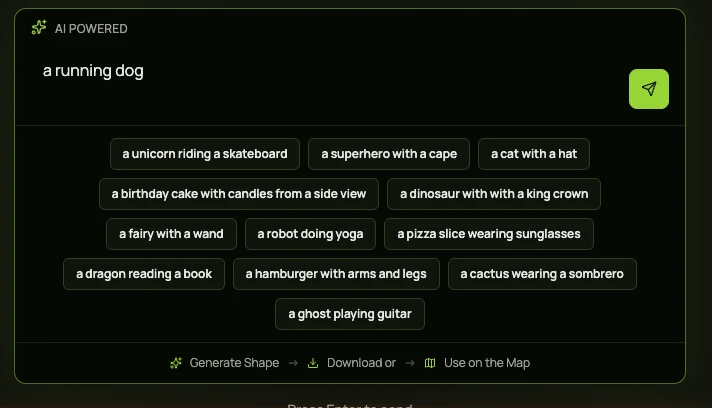
Type a description of what you want your GPS art to look like. Keep it simple and direct.
Good prompts:
- "a running dog"
- "a bicycle"
- "a heart shape"
- "a dolphin jumping"
- "a coffee cup"
Tip: Click the help icon (?) next to the title for tips on writing effective prompts.
Step 3: Generate Your Doodle
Press Enter or click the send button to generate your doodle. The AI will process your request and create a custom sketch.
Step 4: Review the Result
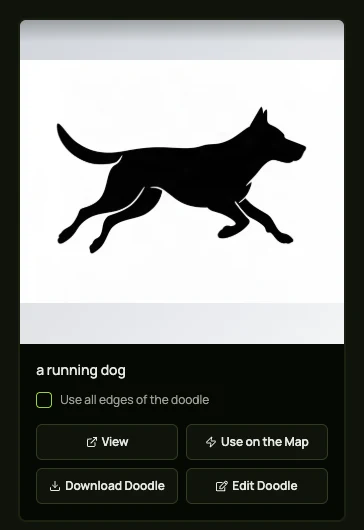
Once generated, your doodle appears on screen with several options:
- View: Open the full-size image
- Use on the Map: Convert to a route
- Download Doodle: Save the image
- Edit Doodle: Modify in the image editor
Step 5: Choose Edge Options
Before using the doodle on the map, you can choose how to trace it:
- Unchecked (default): Use only the external border – creates a single continuous outline
- Checked "Use all edges": Trace all edges including internal details – creates more complex routes
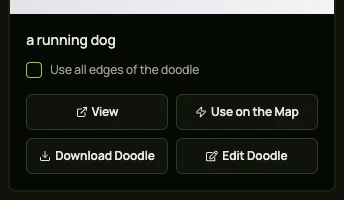
Pro Tip: For simpler, more runnable routes, keep "Use all edges" unchecked. Only enable it for detailed designs where you want internal lines.
Step 6: Add to Map
Click Use on the Map to convert your doodle into an editable sketch. You'll be taken to the map editor where you can position, scale, and refine your GPS art.
Working with Your AI Doodle on the Map
After clicking "Use on the Map", your doodle is converted to an editable sketch:
Position and Scale
Use the transform handles to:
- Move the doodle to your desired location
- Scale it to fit your target distance
- Rotate it to align with local roads
Apply Road Snapping
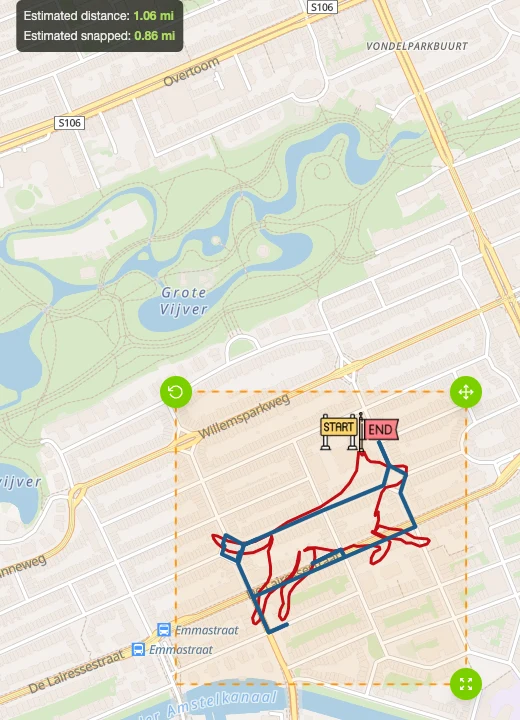
Enable road snapping to align your AI-generated shape to actual roads and paths. This transforms your artistic doodle into a real runnable or cyclable route.
Fine-Tune the Route
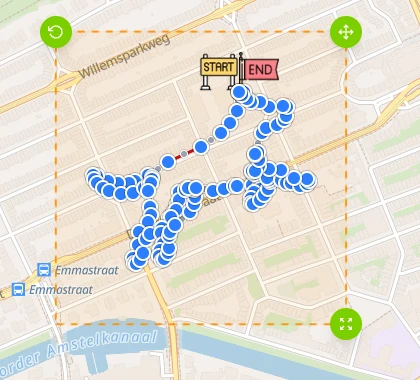
Use Edit Points mode to adjust individual points, ensuring your route follows the roads you want while maintaining the overall shape.
Tips for Best Results
| ✅ Do | ❌ Don't |
|---|---|
| Write in English | Specify artistic styles ("minimalist", "line art") |
| Be direct: "a mountain bike" | Be vague: "a nice icon for running" |
| Keep it simple: "a cat paw" | Request text in the image |
| Describe the subject clearly | Ask for complex multi-element layouts |
Viewing Past Creations
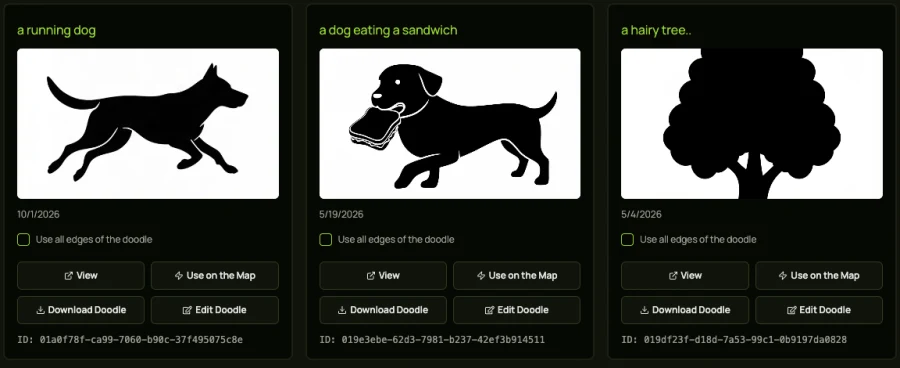
Your previously generated doodles are saved and displayed at the bottom of the AI Doodle page. You can revisit and reuse any of your past creations.
Usage Limits
The AI Doodle Generator has usage limits based on your account type:
- Free accounts: 2 AI sketch generations
- Lifetime license: 10 AI sketch generations
💡 Coming Soon: A token-based system will allow you to purchase additional AI generations, so you can create as many sketches as you want!
Troubleshooting
AI generated something different than expected?
- Try rephrasing your prompt to be more specific
- Add context: "a dog running to the right" instead of just "dog"
Doodle looks too complex for a route?
- Keep "Use all edges" unchecked to use only the outline
- Choose simpler subjects (animals, objects) over detailed scenes
- Use Edit Points on the map to simplify complex sections
Route doesn't follow roads well?
- Some artistic shapes don't map perfectly to street grids
- Use Edit Points to manually adjust problematic areas
- Consider scaling or rotating the shape to better fit local roads
What's Next?
Now that you've created an AI-generated doodle, you can:
- Save your sketch to access it anytime
- Export to GPX for your GPS watch or fitness app
- Make it public to share with the community
Check out our other tutorials:
- How to Transform a Hand-Drawn Sketch with AI
- How to Create Your First Sketch
- How to Export to Garmin Watch
- How to Import from GPX
Ready to create AI-powered GPS art? Try the AI Doodle Generator now!