
Send any route to your iPhone with a QR code
You plan on the big screen and run with the phone. Getting a route from one to the other should take a second, not an email to yourself. 📲
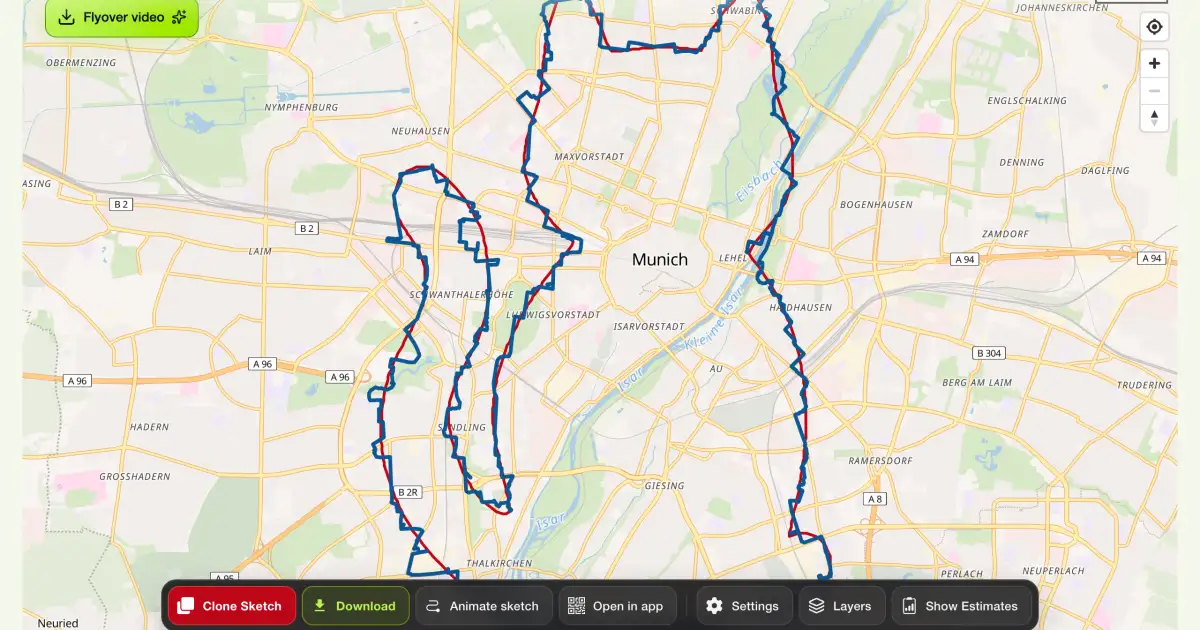
1. Open the route on routesketcher.com
Any public route works: one from the gallery, a ready-made route, or your own once you've made it public. In the toolbar under the map, hit Open in app.

2. Scan the QR code
A QR code pops up. Scan it either way:
- iPhone camera: point it at the screen and tap the link. The route opens straight in the app.
- In the app: go to Import and tap Scan QR.
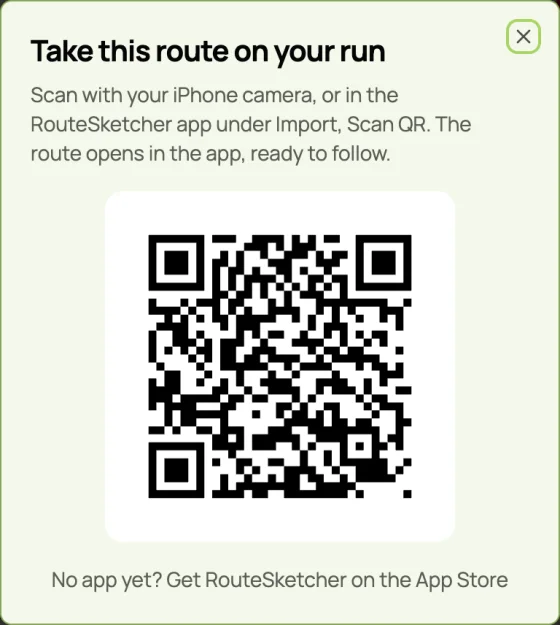
The route lands in your library, snapped and ready to follow, with a voice calling every turn.
Already on your iPhone? Skip the scan: tap Open in app, then Open in the app.
Your private sketches too
Working on a sketch you haven't made public? Open it in the editor, and you'll find Open in app under More. It works the same way, with one extra step: in the app, link the routesketcher.com account the sketch belongs to. Nobody else can open your private sketch with the code, even if they scan it.
Save first: The app gets the last saved version of your sketch, so save your changes before you scan.
No app yet? The window links to the App Store. Here's what the app does.
Now pick a route and go run it. 🏃