
How to Make a Flyover Reel with RouteSketcher
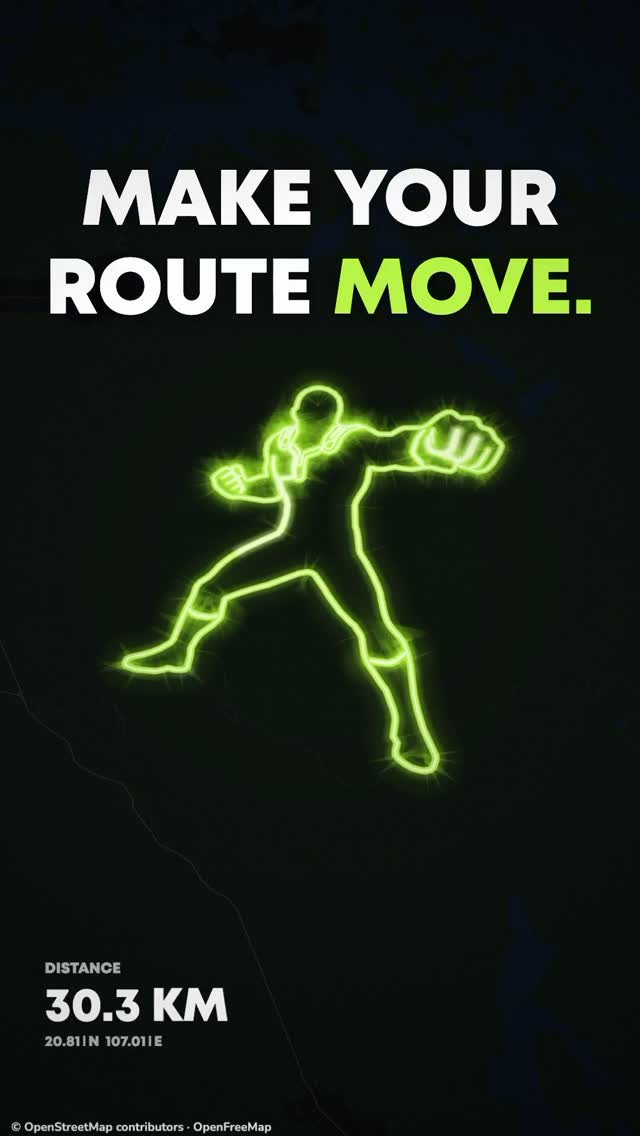
You drew it. Now give it a little screen time. 🎬
A flyover reel turns your saved route into a short animated video: the camera follows the line across the map, then pulls back to reveal your GPS art. Download the MP4 and share it on Instagram, TikTok, or straight into the group chat.
You can make one from a route you've already completed or a sketch you're still planning. No activity recording or video editor needed.
1. Open your saved sketch
Sign in, head to My Sketches and hit Create reel on the route you want to animate. Already in the editor? Use the glowing Flyover video button beside the map toolbar.
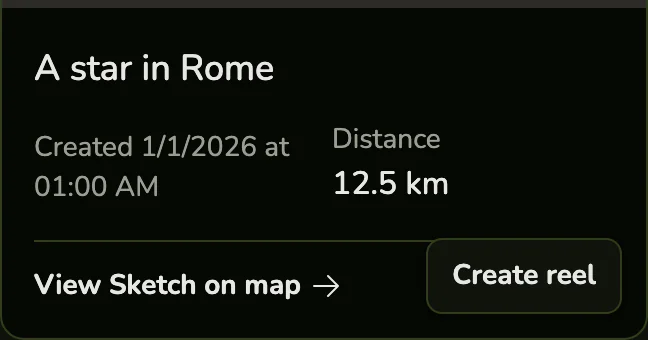
No route yet? Draw one or import a GPX, then save it to your account.
Save first: Reels use your saved route. If you've just edited the shape or snapped it to roads, save those changes before opening the studio.
2. Pick a template
The studio opens with your route in motion. Watch the preview, or use Pause and Play to take another look.
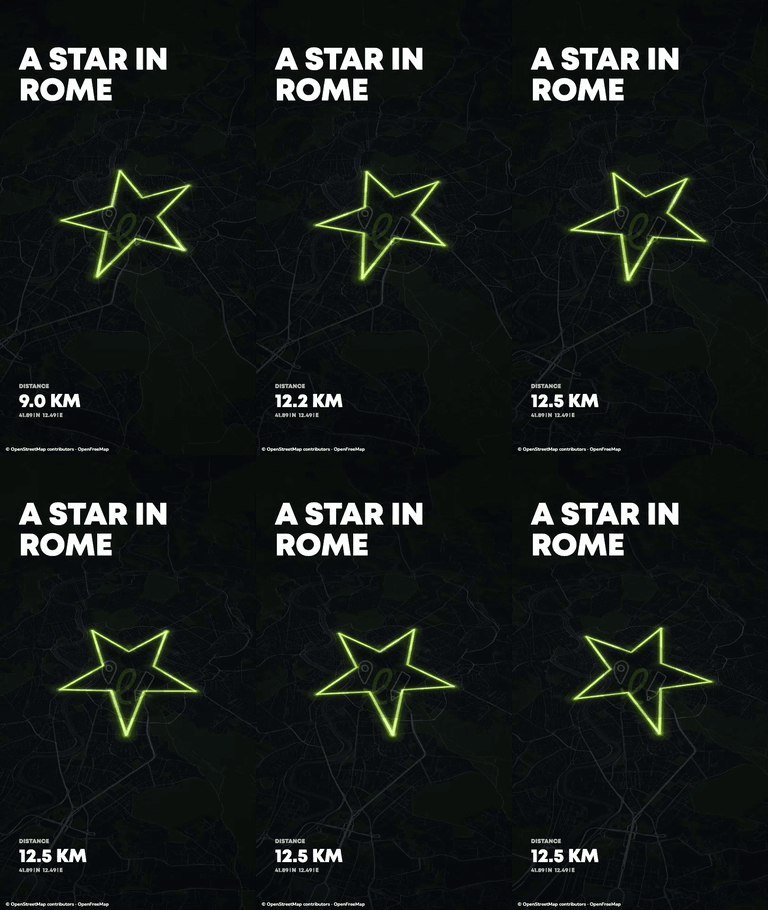
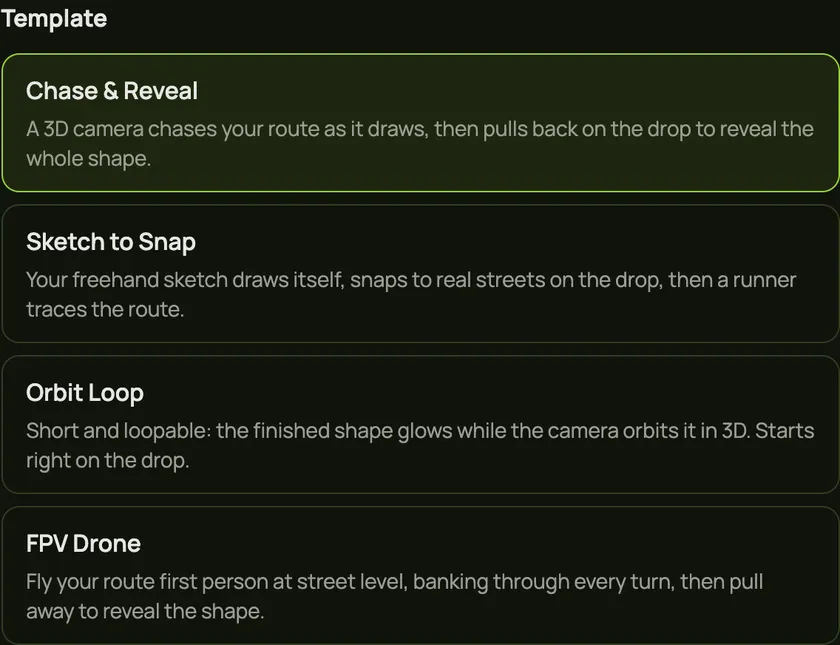
Start with Chase & Reveal for that “wait… it's a star!” moment. The camera follows your route, then zooms out for the big reveal. Here's a star in Rome. ⭐
Lifetime also unlocks three more looks:
- Sketch to Snap: Watch your drawing turn into a route along real streets. You'll need to snap it to roads and save it first.
- Orbit Loop: The camera circles your finished shape in a short loop. Let the artwork do the talking.
- FPV Drone: Fly your route first person at street level, banking through every turn, then pull away to reveal the shape. More about FPV reels
3. Make it yours
Add a short Title, or leave it blank and let the route speak for itself. Pick kilometers or miles under Units.
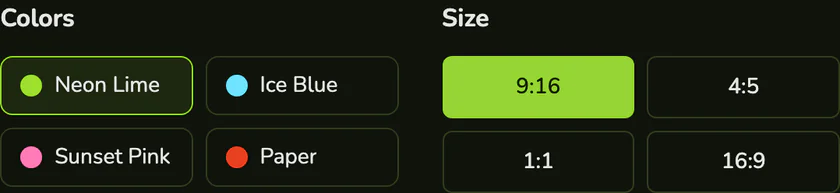
Free reels use Neon Lime, 9:16, music and RouteSketcher branding. Lifetime unlocks all colors and sizes, sound, ending-logo and distance controls, and removes watermarks.
Want a brighter map? Lifetime users can uncheck Map night for Map day, keeping your chosen color theme. See both looks.
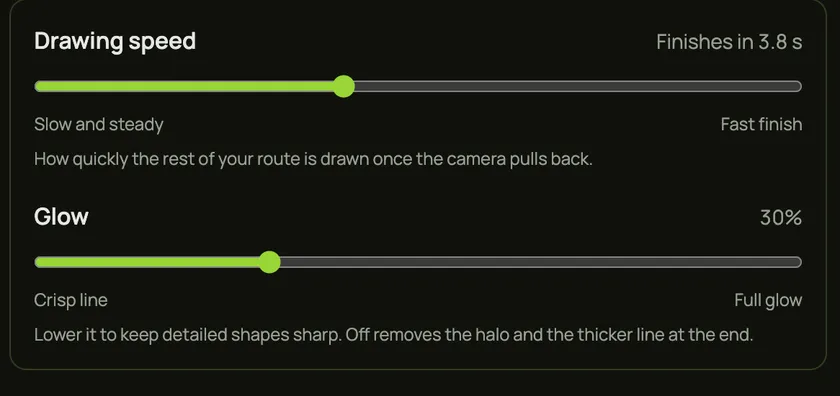
Drawing speed and glow
Got a detailed route? Give it room to breathe. With Lifetime, two sliders let you tune the motion:
- Drawing speed: Slide toward Slow and steady so the rest of your route draws at an even pace after the camera pulls back, instead of racing to the finish. The label shows how long the finish takes. In Orbit Loop it controls how fast your route draws in. Sketch to Snap already draws at an even pace, and FPV Drone shows your whole route from the start.
- Glow: Turn it down to keep small details sharp, or all the way to Off for a crisp line with no halo and no thicker line at the big reveal.
Free reels keep the default speed and full glow.
For a first reel, try 9:16 and a title of just a few words. Watch the preview again after changing your settings.
4. Create, download, share
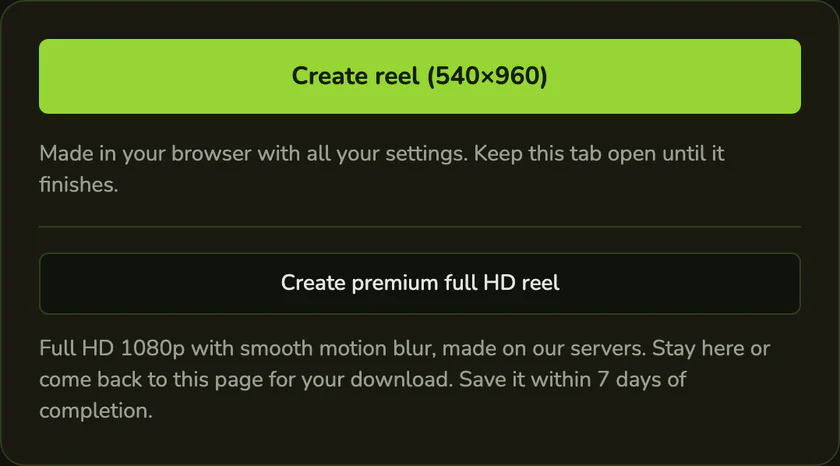
Hit Create free reel (or Create reel with Lifetime). Keep the tab open while it renders. When you see Your reel is ready, click Download MP4 before leaving—browser exports aren't saved in your reel history.
Want full HD? With Lifetime, choose Create premium full HD reel. This takes a few minutes on our servers. You can close the tab and return through My Sketches → Create reel to get your download. Save it within 7 days.
Upload your MP4 wherever you like. Caption idea: “Yes, that's an actual route.” 👀