
Change your mind halfway through
You pick Snapping or Freestyle before you start drawing. Until now that was it: if you wanted the other one, you had to start a new sketch. Not anymore. 🧲🖌 There's a button in the toolbar now that flips between the two, whenever you like.
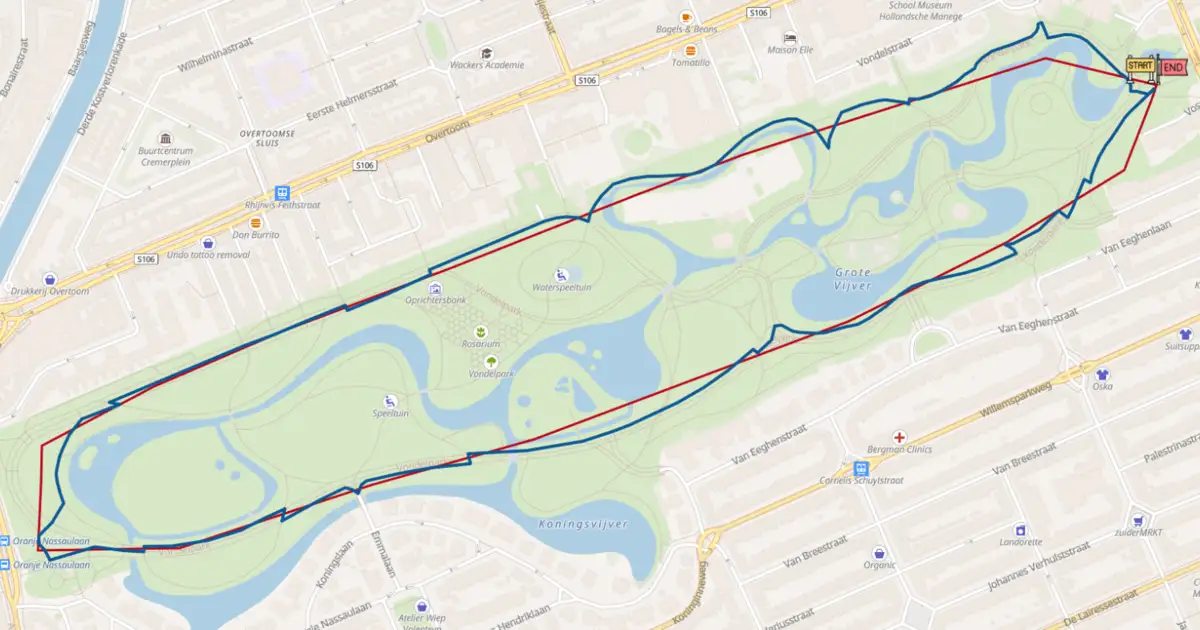
How it works
The button sits in the toolbar at the bottom of the map, both while you draw and when you pause. It shows the mode you're in: 🧲 Snapping or 🖌 Freestyle. Tap it to switch.
- Freestyle to Snapping: everything you've drawn so far snaps to the streets in one go, and from then on it snaps as you draw.
- Snapping to Freestyle: your drawing stays exactly as you drew it and the street route goes away. Your GPX is now the line you drew.
Nothing gets lost when you switch. Your drawing is always kept, so going back to Snapping simply snaps it again.
When it's handy
- You started in a park in Freestyle and the shape grew into the streets around it.
- You snapped a shape and one bit keeps zigzagging, so you'd rather run the line as drawn, say on a beach or a big open square.
- You're not sure yet: draw first, then try both and see which looks better.
If there are no streets near your drawing, switching to Snapping tells you so. Tap the button again to go back to Freestyle.